Install MySQL Database
If there is no existing database, you can download and install it from the official website: https://dev.mysql.com/downloads/mysql/
Tip
- The following examples demonstrate the manual installation process.
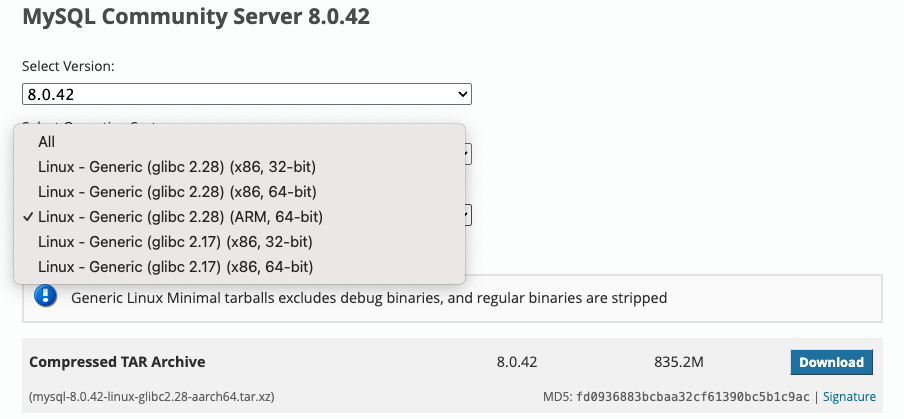
- When downloading, make sure to select a version that matches your operating system and CPU architecture (e.g., x64, arm64). This guide uses version 8.0.42 for the arm64 architecture as an example.
- On Linux/macOS, use the default terminal; on Windows, use PowerShell (unless CMD is explicitly specified).
Ⅰ. Version Selection
(Ⅰ) macOS
| Arm64 |  |
| Amd64 |  |
(Ⅱ) Linux
1. Check glibc Version
ldd --versionSample output:
ldd (Debian GLIBC 2.36-9+deb12u10) 2.36
Copyright (C) 2022 Free Software Foundation. This is free software; see the source for copying conditions. There is NO warranty; not even for MERCHANTABILITY or FITNESS FOR A PARTICULAR PURPOSE. Written by Roland McGrath and Ulrich Drepper.Choose the MySQL version compatible with the installed glibc version.
2. Install Dependencies
Install the libaio package:
| Package Manager | Command |
|---|---|
| apt | apt-cache search libaio1 & apt-get install libaio1 |
| yum | yum search libaio & yum install libaio |
(Ⅲ) Windows

Ⅱ. Installation
(Ⅰ) Extract Files
# macOS
tar zxvf mysql-8.0.42-macos15-arm64.tar.gz -C ./
# Create symbolic link
ln -s mysql-8.0.42-macos15-arm64 mysql# Linux
tar Jxvf mysql-8.0.42-linux-glibc2.28-aarch64.tar.xz -C ./
# Create symbolic link
ln -s mysql-8.0.42-linux-glibc2.28-aarch64 mysql# Windows
Expand-Archive .\mysql-8.0.42-winx64.zip .\
# Create symbolic link
New-Item -Path .\mysql\ -ItemType SymbolicLink -Target .\mysql-8.0.42-winx64\(Ⅱ) Configuration
macOS/Linux:
# my.cnf
[mysqld]
# Case sensitivity for table names
lower-case-table-names      = 1
# Default time zone
default-time-zone = '+08:00'Windows:
# my.ini
[mysqld]
# Case sensitivity for table names
lower-case-table-names      = 1
# Default time zone
default-time-zone = '+08:00'(Ⅲ) Install MySQL
# macOS
# Remove quarantine attribute
xattr -r -d com.apple.quarantine mysql-8.0.42-macos15-arm64
# Navigate to MySQL directory
cd mysql-8.0.42-macos15-arm64
# Initialize MySQL
./bin/mysqld --defaults-file=my.cnf --initialize# Linux
groupadd mysql
useradd -r -g mysql -s /bin/false mysql
cd mysql-8.0.42-linux-glibc2.28-aarch64
mkdir mysql-files
chown mysql:mysql mysql-files
chmod 750 mysql-files
./bin/mysqld --defaults-file=my.cnf --initialize --user=mysql# Windows
cd mysql-8.0.42-winx64
.\bin\mysqld.exe --defaults-file=my.ini --initialize --console(Ⅳ) Change Root Password
1. Get Default Password
After executing the initialization command, the log will contain output like:
...
A temporary password is generated for root@localhost: .u_p9JUy53Aj
...The temporary root password is the value shown after A temporary password is generated for root@localhost:.
2. Start MySQL Service
# macOS
nohup ./bin/mysqld --defaults-file=my.cnf >> mysql.nohup 2>&1 &# Linux
nohup ./bin/mysqld --defaults-file=my.cnf --user=mysql >> mysql.nohup 2>&1 &# Windows
.\bin\mysqld.exe --defaults-file=my.ini3. Login to MySQL CLI
# macOS/Linux
./bin/mysql -uroot -p# Windows
.\bin\mysql.exe -uroot -pThen enter the temporary password to login.
4. Set New Password
Change the password to shushi@2019 (or your own):
Note
This is an example password; you can change it to your preferred password.
ALTER USER 'root'@'localhost' IDENTIFIED WITH caching_sha2_password BY 'shushi@2019';At this point, MySQL installation is complete.
Ⅲ. Stop MySQL
Note
The password shown is an example and should be replaced with your own if changed.
# macOS/Linux
./bin/mysqladmin shutdown -uroot -pshushi@2019# Windows
.\bin\mysqladmin.exe shutdown -uroot -pshushi@2019Ⅳ. Common Database Configuration Issues
(Ⅰ) Enable Remote Access
-- Enable remote access for root
USE mysql;
UPDATE user SET host='%' WHERE user='root';
FLUSH PRIVILEGES;
QUIT;Note
Make sure the network is accessible if integrating with other environments.
After installation, use your preferred tools to test the connection. If it fails, check if the firewall is enabled.
(Ⅱ) Time Zone Issues
# Add in my.cnf (macOS) or my.ini (Windows)
default-time-zone= '+08:00'Note
If time zone configuration is incorrect, you may encounter the following error:
error creating bean with name 'dataSourceAutoRefreshManager': Invocation of init method failed; nested exception is PamirsException level: ERROR, code: 10150008, type: SYSTEM_ERROR, msg: Database creation error...

Caused by: java.sql.SQLException: The server time zone value 'й ʱ' is unrecognized or represents more than one time zone. You must configure either the server or JDBC driver (via the serverTimezone configuration property) to use a more specific time zone value if you want to utilize time zone support.How to verify if the default-time-zone parameter has taken effect? After logging into MySQL, execute the following SQL command:
SELECT @@global.time_zone, @@session.time_zone;Expected Results
- If the configuration is successful,
@@global.time_zonewill display the value you set (such as'+8:00'or'Asia/Shanghai'). @@session.time_zoneusually displaysSYSTEM(indicating that the global setting is used) or a value consistent with the global time zone.