I. Dependencies and Settings Required for Using Workflow
(Ⅰ) Modules Dependent on Workflow
1. Add dependencies on workflow, sql-record, and trigger related modules in pom.xml
- workflow: Core module for workflow operation
- sql-record: Listens to additions, deletions, and modifications of the corresponding model after process publication
- trigger: Asynchronous task scheduling module
xml
<dependency>
    <groupId>pro.shushi.pamirs.workflow</groupId>
    <artifactId>pamirs-workflow-api</artifactId>
</dependency>
<dependency>
    <groupId>pro.shushi.pamirs.workflow</groupId>
    <artifactId>pamirs-workflow-core</artifactId>
</dependency>
<dependency>
    <groupId>pro.shushi.pamirs.core</groupId>
    <artifactId>pamirs-sql-record-core</artifactId>
</dependency>
<dependency>
    <groupId>pro.shushi.pamirs.core</groupId>
    <artifactId>pamirs-trigger-core</artifactId>
</dependency>
<dependency>
    <groupId>pro.shushi.pamirs.core</groupId>
    <artifactId>pamirs-trigger-bridge-tbschedule</artifactId>
</dependency>2. Add dependencies on corresponding modules, sql-record path, and other related settings in application.yml
yaml
pamirs:
...

  record:
    sql:
      # Modify to your own path
      store: /opt/pamirs/logs
...

  boot:
    init: true
    sync: true
    modules:
...
      - sql_record
      - trigger
      - workflow
...

  sharding:
    define:
      data-sources:
        ds:
          pamirs
      models:
        "[trigger.PamirsSchedule]":
          tables: 0..13

  event:
    enabled: true
    schedule:
      enabled: true
      # ownSign distinguishes different applications
      ownSign: demo
    rocket-mq:
      # No need to configure when enabled is false
      namesrv-addr: 192.168.6.2:19876
    trigger:
auto-trigger: trueNote: For more YAML configurations, please refer to Module API.
II. Trigger Modes
(Ⅰ) Automatic Trigger Mode
Set the trigger mode in the process designer. If the code trigger mode is set, automatic triggering will not occur.
(Ⅱ) Code Invocation Trigger Mode
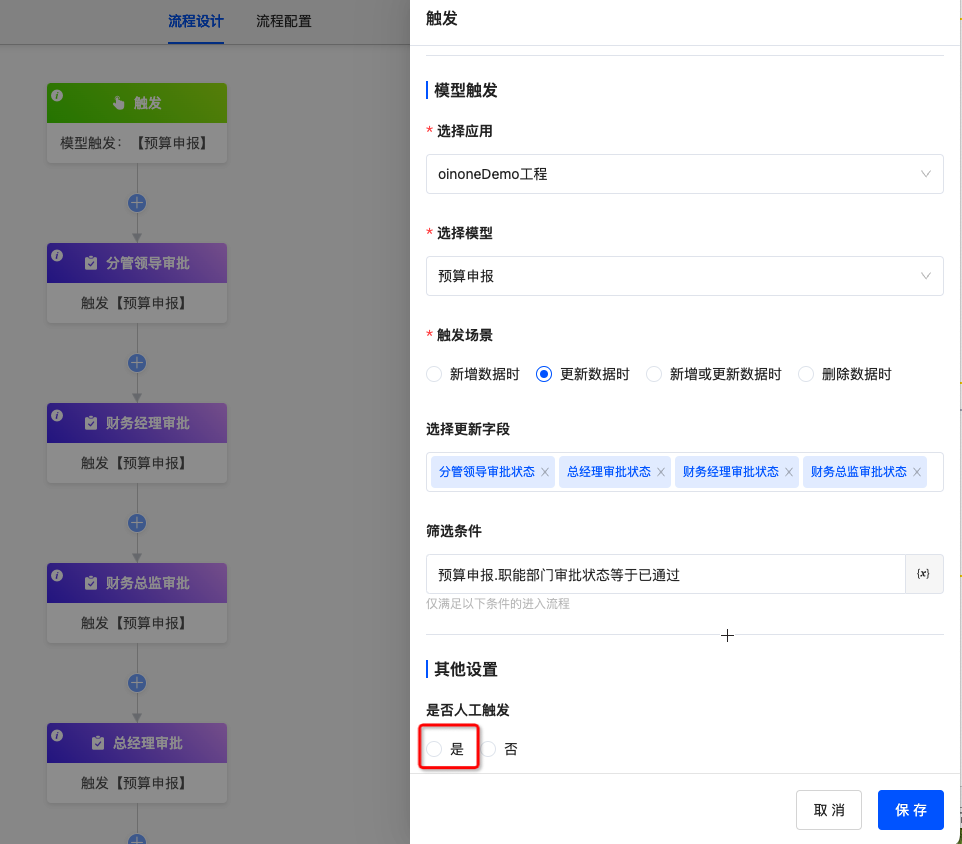
1. In the trigger settings of the process designer, set whether to trigger manually to "Yes"
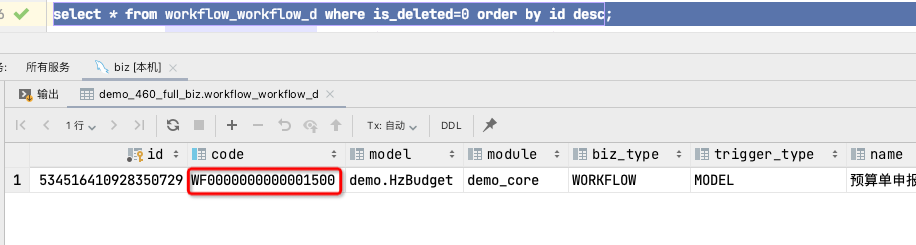
2. Query the database to obtain the process code
3. Invoke in code
java
/**
     * Trigger workflow instance
     */
private Boolean startWorkflow(WorkflowD workflowD, IdModel modelData) {
    WorkflowDefinition workflowDefinition = new WorkflowDefinition().queryOneByWrapper(
        Pops.<WorkflowDefinition>lambdaQuery()
        .from(WorkflowDefinition.MODEL_MODEL)
        .eq(WorkflowDefinition::getWorkflowCode, workflowD.getCode())
        .eq(WorkflowDefinition::getActive, 1)
    );
    if (null == workflowDefinition) {
        // No running instance of the process
        return Boolean.FALSE;
    }
    String model = Models.api().getModel(modelData);

    // Workflow data context
    WorkflowDataContext wdc = new WorkflowDataContext();
    wdc.setDataType(WorkflowVariationTypeEnum.ADD);
    wdc.setModel(model);
    wdc.setWorkflowDefinitionDefinition(workflowDefinition.parseContent());
    wdc.setWorkflowDefinition(workflowDefinition);
    wdc.setWorkflowDefinitionId(workflowDefinition.getId());
    IdModel copyData = KryoUtils.get().copy(modelData);
    // Manually trigger the created action flow, set the operator as the current user as the process initiator
    copyData.setCreateUid(PamirsSession.getUserId());
    copyData.setWriteUid(PamirsSession.getUserId());
    String jsonData = JsonUtils.toJSONString(copyData.get_d());
    // Trigger the workflow - trigger onCreateManual for addition, trigger onUpdateManual for update
    Fun.run(WorkflowModelTriggerFunction.FUN_NAMESPACE, "onCreateManual", wdc, msgId, jsonData);
    return Boolean.TRUE;
}