I. Introduction
In oinone 5.1.0 and above, there are two ways to import and export designs:
- Export design data and metadata from the designer to a file by calling the export interface, which provides
download/exporttypes of interfaces. - Use the metadata online publishing function provided by the platform.
II. Dependency Package
xml
<dependency>
    <groupId>pro.shushi.pamirs.metadata.manager</groupId>
    <artifactId>pamirs-metadata-manager</artifactId>
</dependency>III. Install GraphQL Tool
Download address: https://github.com/Kong/insomnia/releases
IV. Log in to GQL
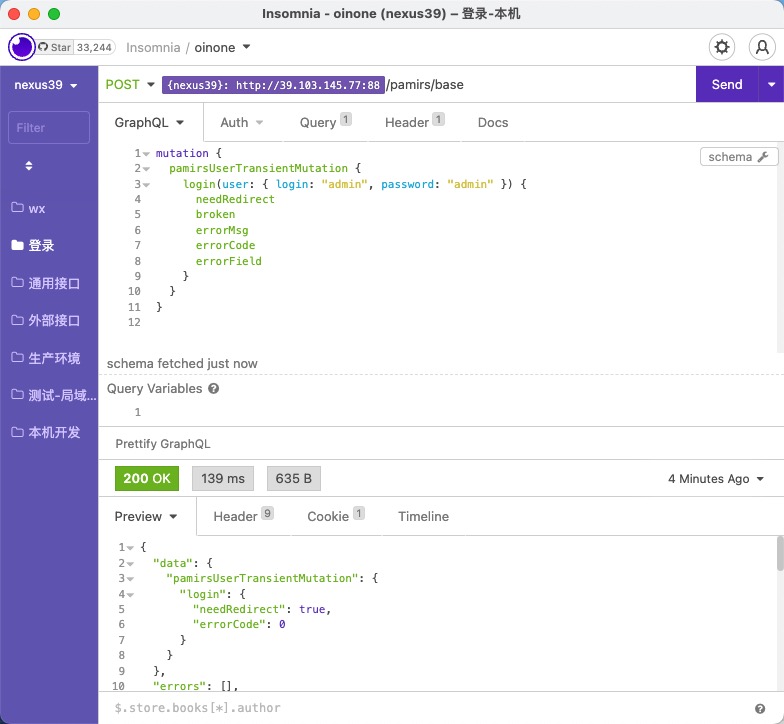
(Ⅰ) Example Call Code
graphql
mutation {
    pamirsUserTransientMutation {
        login(user: { login: "admin", password: "admin" }) {
            needRedirect
            broken
            errorMsg
            errorCode
            errorField
        }
    }
}V. Export to Generate JSON File
Execute GraphQL to directly return export data, suitable for downloading files through a browser. 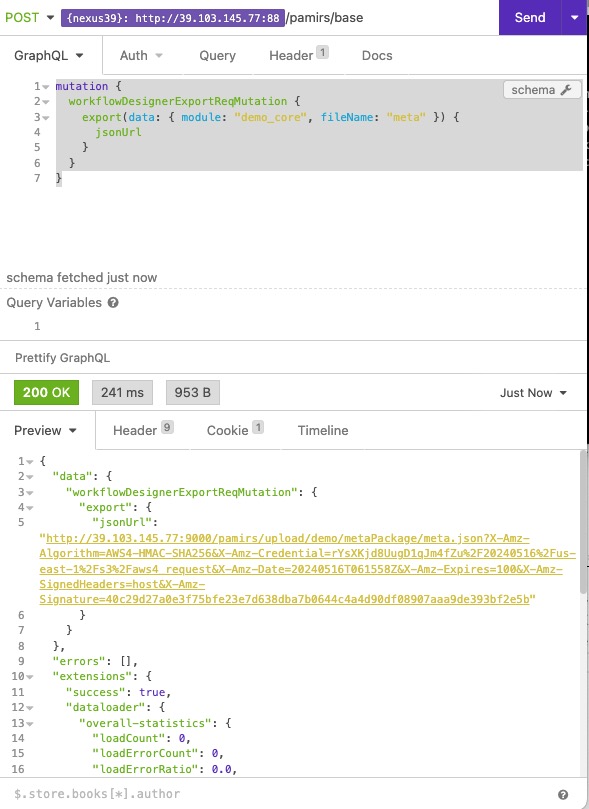
(Ⅰ) Full Export
Request example:
graphql
mutation {
    dataDesignerExportReqMutation {
        export(data: { fileName: "datavi_data" }) {
            jsonUrl
        }
    }
}(Ⅱ) Specified Chart Export
Request example:
graphql
mutation {
    dataDesignerExportReqMutation {
        export(data: { chartCode: "CT00000000002000", fileName: "datavi_data" }) {
            jsonUrl
        }
    }
}The corresponding chartCode is the coding code of the chart, which can be obtained by querying the database. 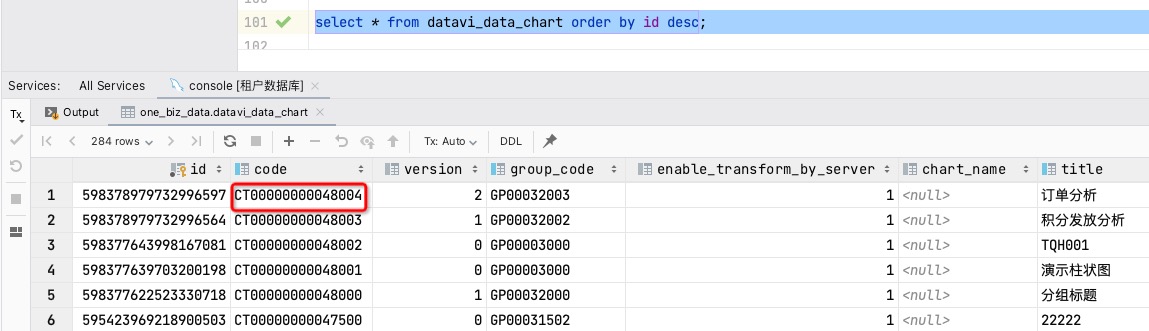
(Ⅲ) Specified Report Export
Request example:
graphql
mutation {
    dataDesignerExportReqMutation {
        export(data: { reportCode: "RP00001000", fileName: "datavi_data" }) {
            jsonUrl
        }
    }
}The corresponding reportCode is the coding code of the report, which can be obtained by querying the database. 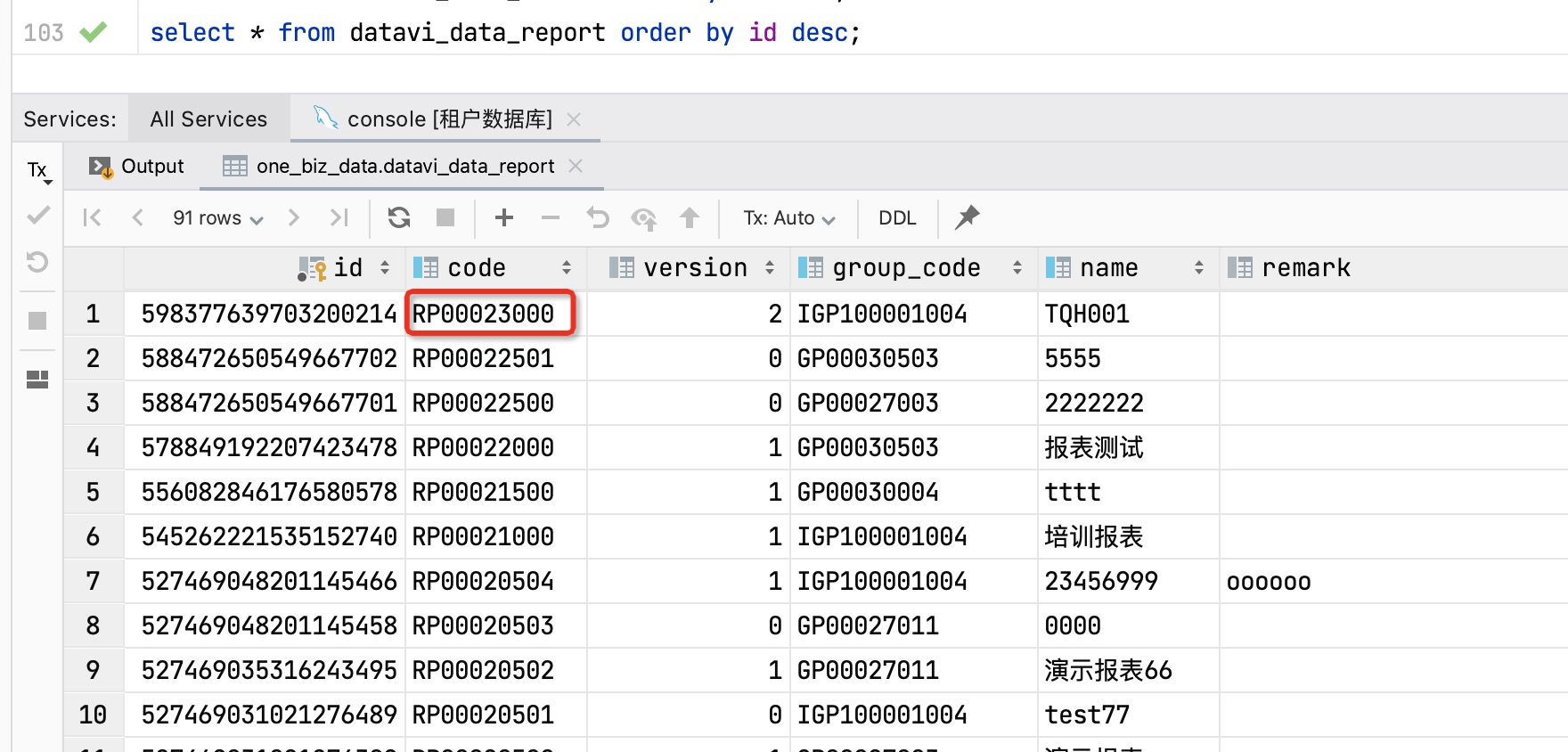
(Ⅳ) Specified Business Dashboard Export
Request example:
graphql
mutation {
    dataDesignerExportReqMutation {
        export(data: { screenCode: "DS00001000", fileName: "datavi_data" }) {
            jsonUrl
        }
    }
}The corresponding screenCode is the coding code of the data dashboard, which can be obtained by querying the database. 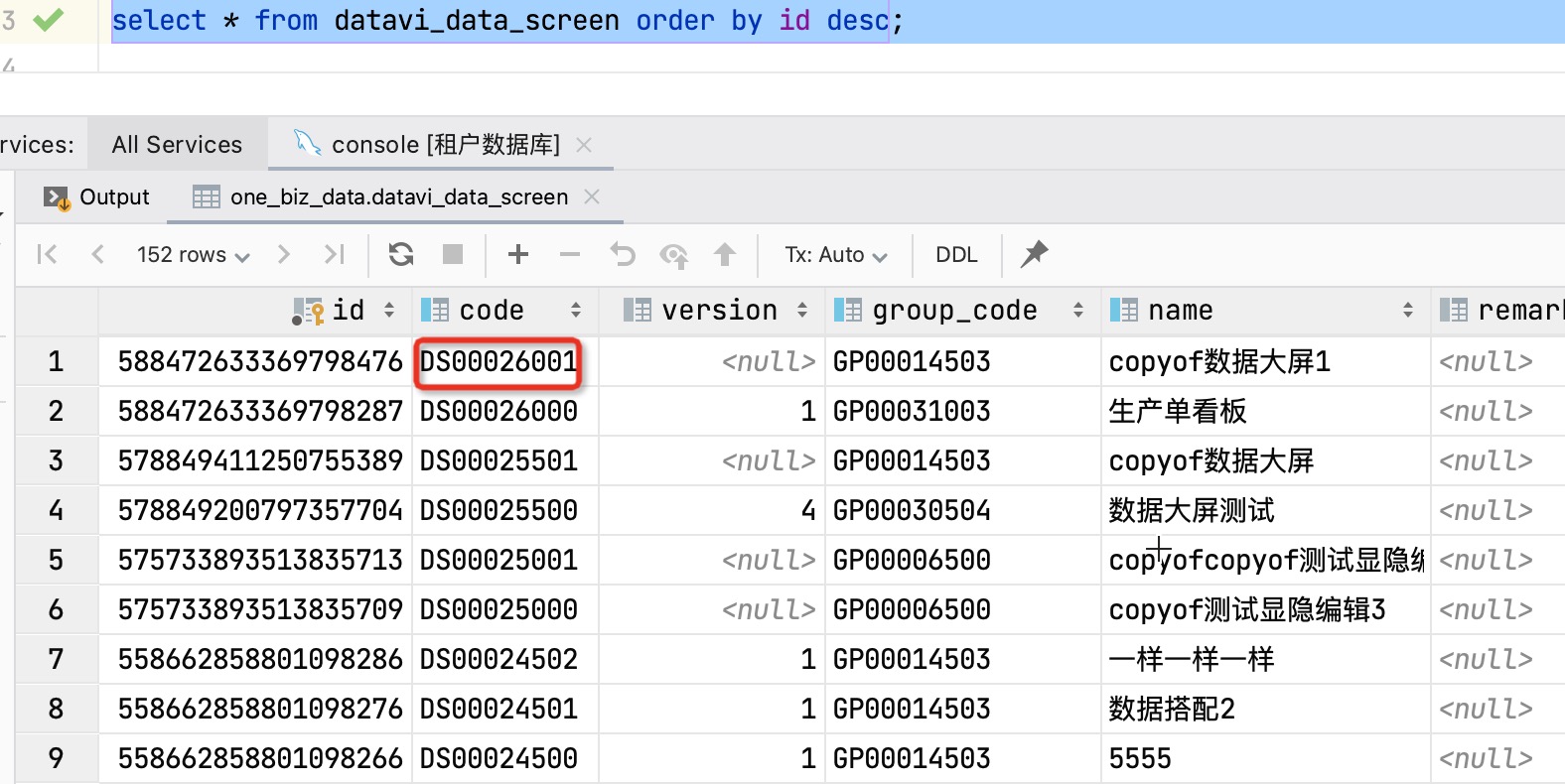
VI. Import Example Code in Business Project
Example code for importing metadata:
java
@Slf4j
@Order(Integer.MAX_VALUE-1)
@Component
public class DemoModuleAppInstall implements MetaDataEditor, LifecycleCompletedAllInit {

    // JSON metadata of the page exported by the process designer
    private static final String INSTALL_DATAVI_META_PATH = "install/datavi_data.json";

    @Override
    public void edit(AppLifecycleCommand command, Map<String, Meta> metaMap) {
        if(StringUtils.isBlank(INSTALL_DATAVI_META_PATH)) return;
        log.info("Start installing metadata");
        try {
            InitializationUtil util = InitializationUtil.get(metaMap, DemoModule.MODULE_MODULE, DemoModule.MODULE_NAME);
            if (null != util) {
                // Designer metadata
                if(StringUtils.isNotBlank(INSTALL_DATAVI_META_PATH)) {
                    log.info("Start installing chart metadata");
                    DesignerInstallHelper.mateInitialization(util, INSTALL_DATAVI_META_PATH, DemoModule.MODULE_MODULE,
                                                             DemoModule.MODULE_NAME);
                }
            }
        } catch (Exception e) {
            log.error("Exception in importing chart designer metadata", e);
        }
    }

    @Override
    public void process(AppLifecycleCommand command, Map<String, ModuleDefinition> runModuleMap) {
        if(StringUtils.isNotBlank(INSTALL_DATAVI_META_PATH)) {
            log.info("Start installing [chart] designer data");
            // Support remote calls, but the execution lifecycle must be LifecycleCompletedAllInit or later. If the designer is installed locally, there is no requirement.
            DesignerInstallHelper.bizInitialization(INSTALL_DATAVI_META_PATH);
        }
    }
}